
The reviews app doesn't show up on the product page
When the extension can't find the reviews app you chose in your store, or BK Reviews is turned off in the theme.
Before sending, the extension opens the product page and looks for the reviews app you chose. If it isn't there, the reviews would have nowhere to show up, so the extension stops and shows one of these messages.
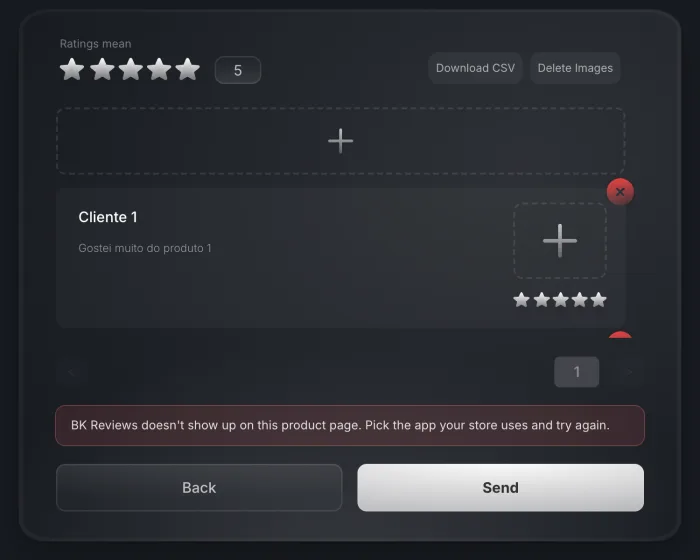
BK Reviews doesn't show up on this product page. Pick the app your store uses and try again.
What to do: Open the product in your store and check which app shows the reviews (its name usually appears at the bottom of the reviews section). Go back, choose that app in the list and send again. If your store has no reviews app yet, install one first, for example BK Reviews.
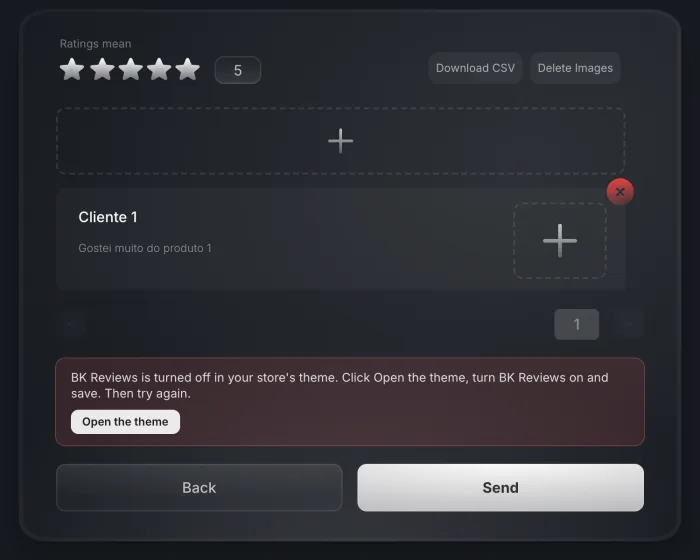
BK Reviews is turned off in your store's theme. Click Open the theme, turn BK Reviews on and save. Then try again.
BK Reviews is turned off in your store's theme. In the Shopify admin, open Online Store, Themes, Customize and App embeds, turn BK Reviews on and save. Then try again.
It can also read:
What to do: Click Open the theme: the theme editor opens on App embeds. Turn on BK Reviews and click Save. Then go back to the extension and send again.
Your store is open in the preview of the theme "Dawn", which doesn't have BK Reviews. Leave the preview, reload the page and try again.
What to do: Your browser is stuck in a preview of another theme. In the bar at the bottom of the store, click to exit the preview (or open the store in an incognito window) and send again.
The BK Reviews plugin doesn't show up on this product. Install and connect the plugin. If the store is in "Coming soon" mode or has a password, keep the product open in a tab.
What to do: In your WordPress admin, check that the BK Reviews plugin is installed, active and connected to your account. If the store is in "Coming soon" mode or has a password, keep the product open in a tab while you send.
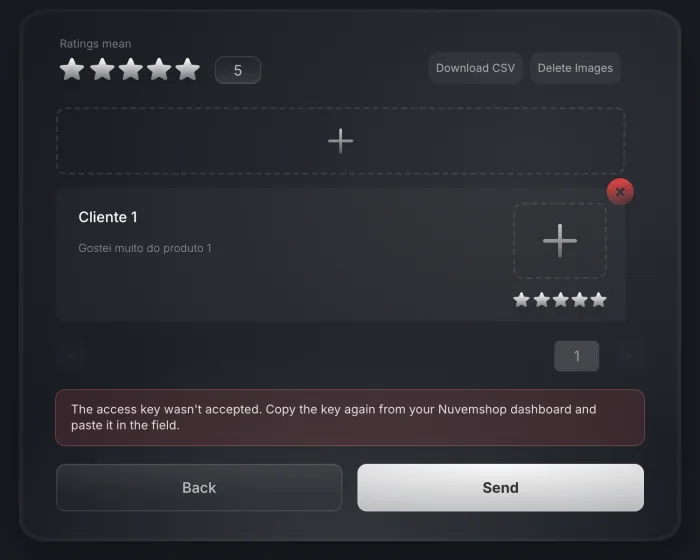
The access key wasn't accepted. Copy the key again from your Nuvemshop dashboard and paste it in the field.
What to do: Some platforms ask for an access key. Copy the key again from the platform admin, with no space before or after, paste it in the field and send again.
If the message keeps showing up
If the message keeps showing up, click Contact support in the message window or the WhatsApp icon at the top of the extension and send us a screenshot.
See also
Didn't find the answer?
Talk to our support team on WhatsApp or by e-mail at suporte@bkreviews.com.br
 Chat on WhatsApp