
 Official plugin for WooCommerce
How to install BK Reviews on your WooCommerce store
Download the plugin, connect your store in under two minutes, and reviews start showing on your product pages.
Download plugin (.zip)Official .zip file. Installation is manual through the WordPress dashboard — the plugin is not listed on the WordPress.org directory.
Before you start: what your store needs
This plugin is for WooCommerce stores. It does not work on a WordPress site without WooCommerce, nor on wordpress.com plans that do not allow installing plugins.
- Self-hosted WordPress, version 6.5 or newer.
- WooCommerce installed and active, version 8.0 or newer — tested up to 10.8.
- PHP 7.4 or newer.
- Administrator or shop manager access: the plugin screen requires the “manage_woocommerce” capability.
- Permalinks set to anything other than “Plain”. Use “Post name” under Settings → Permalinks.
- A store reachable over the internet with outbound HTTPS — that is what makes authorization and product syncing possible.
The plugin declares compatibility with HPOS (high-performance order storage) and with the WooCommerce cart and checkout blocks.
The plugin interface is entirely in English. Throughout this tutorial, button and notice labels appear in quotes exactly as you will see them on screen.
Check your permalinks before connecting
Step-by-step installation
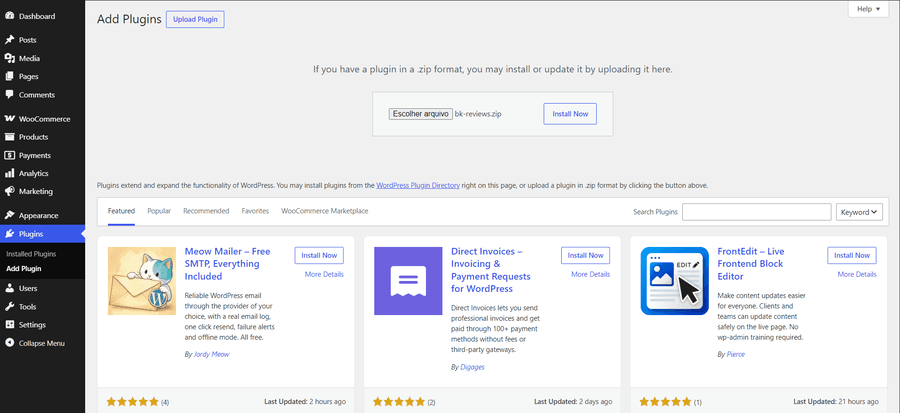
Download the plugin .zip
Click the button above and save bk-reviews.zip to your computer. Do not unzip it: WordPress needs the .zip exactly as it came.
Upload the plugin to WordPress
In the WordPress dashboard, go to Plugins → Add New → “Upload Plugin”, pick the bk-reviews.zip file, click “Install Now” and then “Activate”.
If WordPress refuses to activate it, WooCommerce is not active: the plugin declares WooCommerce as a required dependency and WordPress 6.5 or newer blocks activation without it.
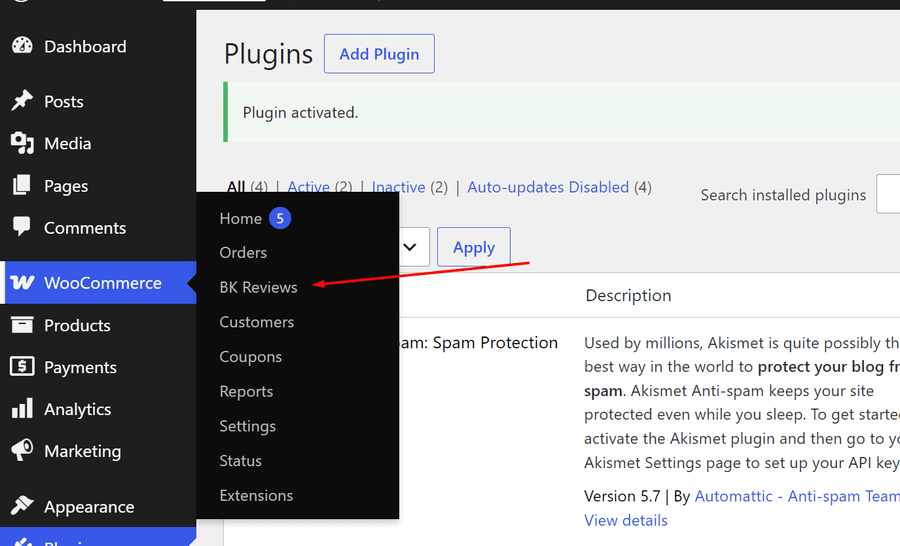
Open WooCommerce → BK Reviews
The plugin does not add a new top-level menu item: it lives as a submenu inside the WooCommerce menu. The screen is only visible to administrators and shop managers.
Fix the permalinks notice, if it shows up
If the screen shows the red permalinks notice, go to Settings → Permalinks, pick “Post name”, save, and come back to WooCommerce → BK Reviews.
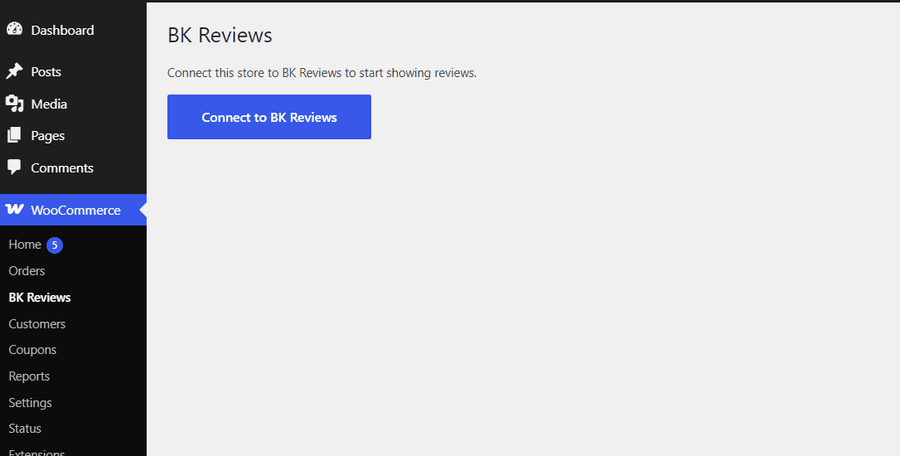
Click “Connect to BK Reviews”
Until the store is connected, that is the only button on the screen.
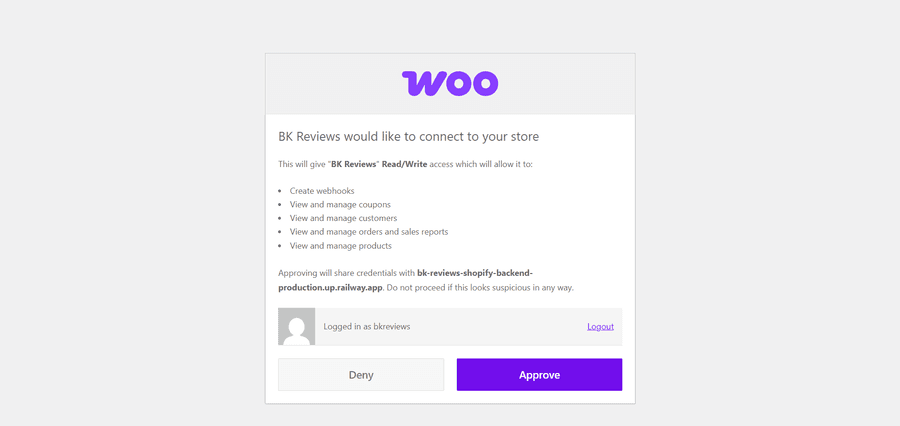
Approve the authorization in WooCommerce
WooCommerce opens its own authorization screen, stating that the “BK Reviews” application is requesting read and write access. Click “Approve”.
That screen belongs to WooCommerce, not to us. It is what generates the API keys the integration uses.
Go back to the plugin screen
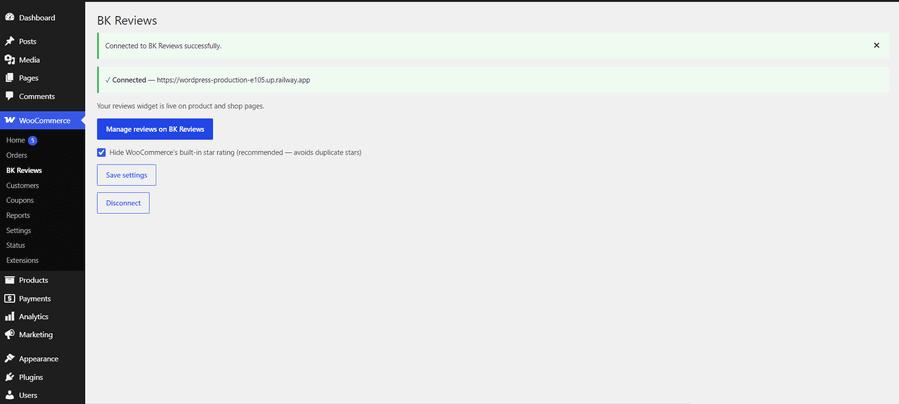
You are redirected automatically and see the green notice “Connected to BK Reviews successfully.”
Review the connected-store screen
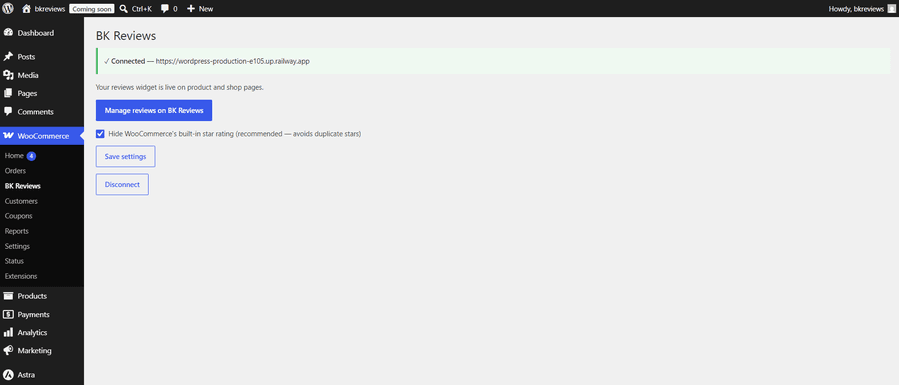
Once connected, the screen shows the “Connected” status with your store address, the “Manage reviews on BK Reviews” button, the “Hide WooCommerce’s built-in star rating” option already checked along with the “Save settings” button, and the “Disconnect” button.
Open a product page and check
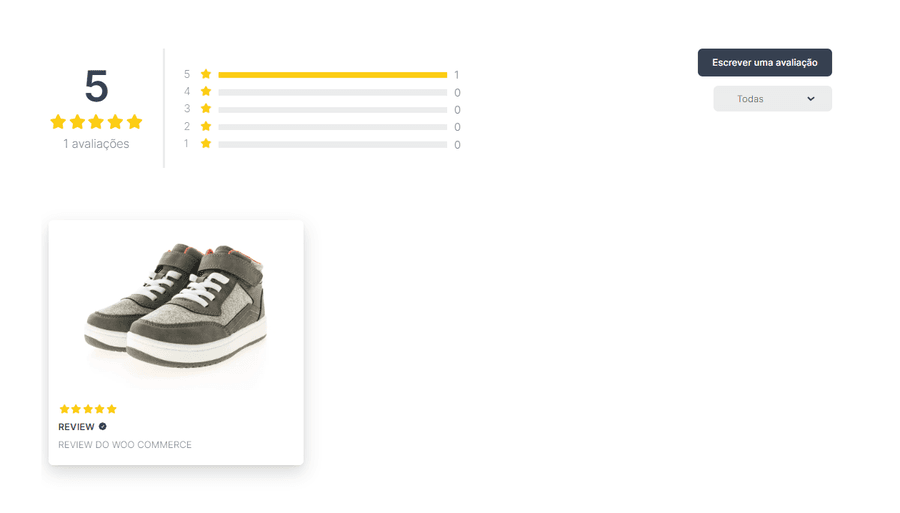
On your store product pages, the star rating shows just above the price and the review list sits below the product block. If you have just connected, clear your site cache and reload the page.
How to tell whether your store is connected
The WooCommerce → BK Reviews screen itself shows the connection status. The result is cached for 60 seconds, so right after a change it can take up to a minute to refresh.
ConnectedGreen. The store is connected and BK Reviews confirmed it. Nothing to do.
Connected (status check unavailable)Amber. We could not reach BK Reviews at that moment, usually because of a network hiccup. The connection stays valid and the plugin retries on its own.
DisconnectedThe screen goes back to showing the connect button and states the reason. What each one means:
- “Store not found on BK Reviews.” — the store no longer exists on our side. Connect again.
- “The integration was uninstalled.” — the integration was removed from the BK Reviews dashboard.
- “Access was revoked — please reconnect.” — access was revoked. Redo the connection.
- “The API keys are no longer valid — please reconnect.” — the API keys were deleted or replaced inside WooCommerce.
- “Your subscription has expired.” — your BK Reviews subscription lapsed. Renew it and the connection works again.
- “Disconnected.” — the store was disconnected manually.
How to open the BK Reviews dashboard
With the store connected, the “Manage reviews on BK Reviews” button opens the dashboard already signed in. No password needed: the button generates a signed, temporary link, valid for about five minutes, that takes you straight there.
Use the button at least once
If the tab sits open too long and the link expires, just go back to WordPress and click the button again.
Messages you might see
- “Link expirado” or “Link inválido” — click the button again from inside WordPress.
- “Link incompleto” — the address was copied only halfway. Use the button instead of copying the URL.
- “Loja sem credencial de plugin” or “Loja não encontrada” — disconnect and connect again from the plugin screen.
What this version of the plugin does not do yet
We would rather be upfront about the current limits:
The widget only shows on the product page
Reviews are inserted on the individual product page. They do not show on shop, category or tag listings — even though the plugin text says “product and shop pages”.
Page builders need the shortcode
Elementor, Divi and themes like Flatsome with a custom layout bypass the standard WooCommerce hooks. In those cases, paste the shortcode below exactly where the reviews should appear:
[bk_reviews]Outside a product page, say which product: [bk_reviews product_id="123"].
There is no Gutenberg block
For now, manual placement is done through the shortcode only.
“Disconnect” only applies on the WordPress side
Disconnecting does not delete your reviews and does not revoke the API keys inside WooCommerce. To remove them, go to WooCommerce → Settings → Advanced → REST API and delete the key created for BK Reviews.
Deactivating deletes nothing; deleting does
Deactivating the plugin keeps everything in place. Deleting the plugin erases the local settings in WordPress — your reviews stay in BK Reviews.
Something went wrong? Start here
I clicked “Connect to BK Reviews” and got a blank screen
Go back to WooCommerce → BK Reviews and click again. If it repeats, check your permalinks and make sure the store is reachable over the internet: stores on localhost or behind a password cannot complete the authorization.
I got “Connection failed: the security check did not match.”
That is the screen security code, which expires after about ten minutes. Refresh the plugin page and click connect again.
The authorization screen returned a 404
Classic case of permalinks set to “Plain”. Go to Settings → Permalinks, pick “Post name”, save, and connect again.
Reviews are not showing on the store
Check three things: you are on an individual product page and not a listing; the plugin screen says “Connected”; and the site or CDN cache was cleared. If your theme uses a page builder, insert the BK Reviews shortcode.
Two rows of stars showed up
Those are the native WooCommerce stars plus ours. On the plugin screen, keep “Hide WooCommerce’s built-in star rating” checked and click “Save settings”.
The plugin will not activate
WordPress blocks activation when WooCommerce is not installed and active. Activate WooCommerce first, then try again.
Ready to install?
Download the plugin and connect your store now. If you get stuck on any step, talk to our support team.
Download plugin (.zip)Talk to support on WhatsApp